


USB-A Version


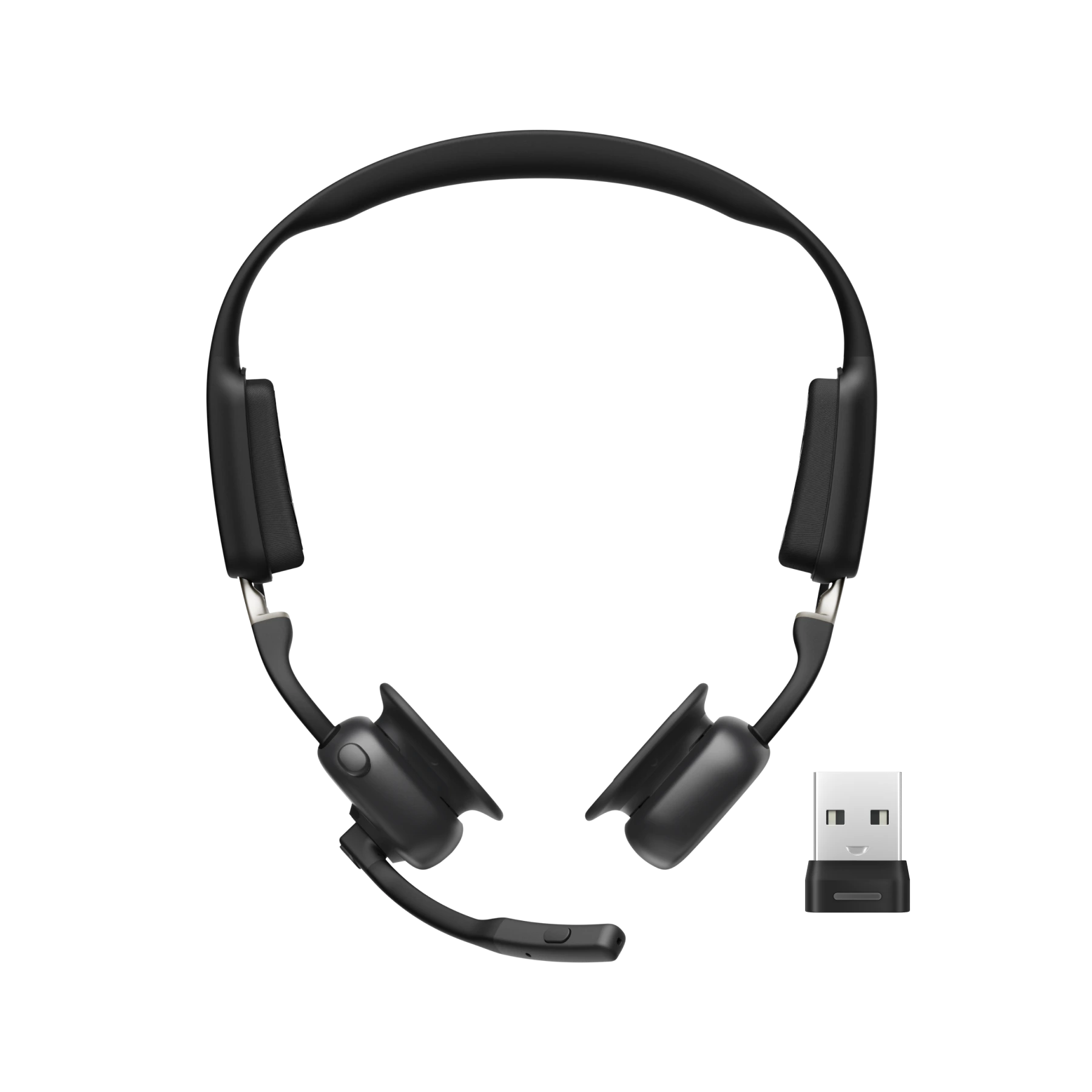
OpenMeet2 UC
Regular price
$249.95
Unit price
per
- Open-Ear Comfort without Compromise
- Secure, stable fit from Shokz GlideFit™
- Dual AI mics reduce up to 99.4% of background noise.
- Shokz DualPitch™ Technology for premium sound quality
View More

What’s Difference?
Why Buy from Shokz.com?
-
Fast & Free Delivery
-
45-Day Price Match Promise
-
45-Day Free Returns
-
2-Year Warranty
Loop120 Wireless Adapter


USB-C Version

OpenMeet 2 Features and Key Highlights


Open-ear design. All-day comfort
Open-ear design. All-day comfort
Introducing the all-new OpenMeet2. The open-ear design reduces ear pressure, heat buildup, and fatigue. Breathable, ergonomic, and built for extended wearing, from your first call to your last.


Shokz GlideFit™. Engineered for a secure, stable fit.
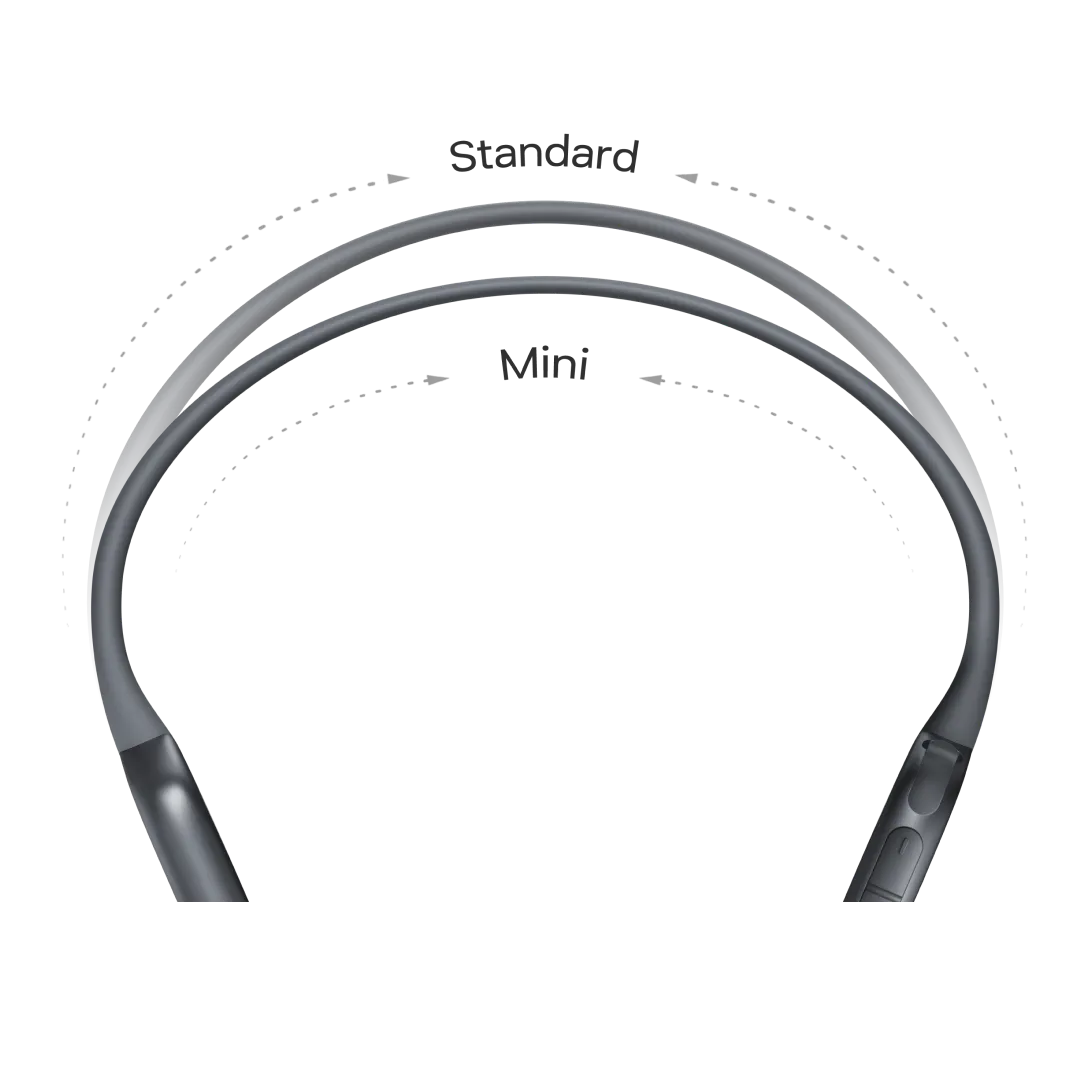
Inspired by the precision fit of premium eyewear, Shokz GlideFit™ uses an inward-contoured frame to distribute tension evenly, so the headset stays secure through every meeting, call, and coffee break.
*Fit and comfort may vary by individual.
AI-powered call clarity.
Crystal clear calls in every environment.
Powered by the Qualcomm® QCC3096 chip, OpenMeet 2's dual-microphone system uses AI to isolate your voice and filter out the rest. From office chatter and keyboard clicks to a barking dog or a busy café, up to 99.4% of background noise is reduced — so every call is crisp and clear.
Up to
99.4%
background noise reduction


Precision audio crafted for every detail.
Shokz DualPitch™ Technology fuses an air-conduction driver with a high-performance bone conduction core, tuned by a digital crossover algorithm to deliver a rich, full-range listening experience.


Open-ear design.
Stay present. Stay aware
OpenMeet2's signature open-ear design keeps your ear canals free, so you can catch a colleague's question, follow a side conversation, stay attuned to your surroundings — all without ever taking your headset off.
Designed for everyday work

Zoom and Webex certified*
Enjoy smoother online meetings.

All-day battery
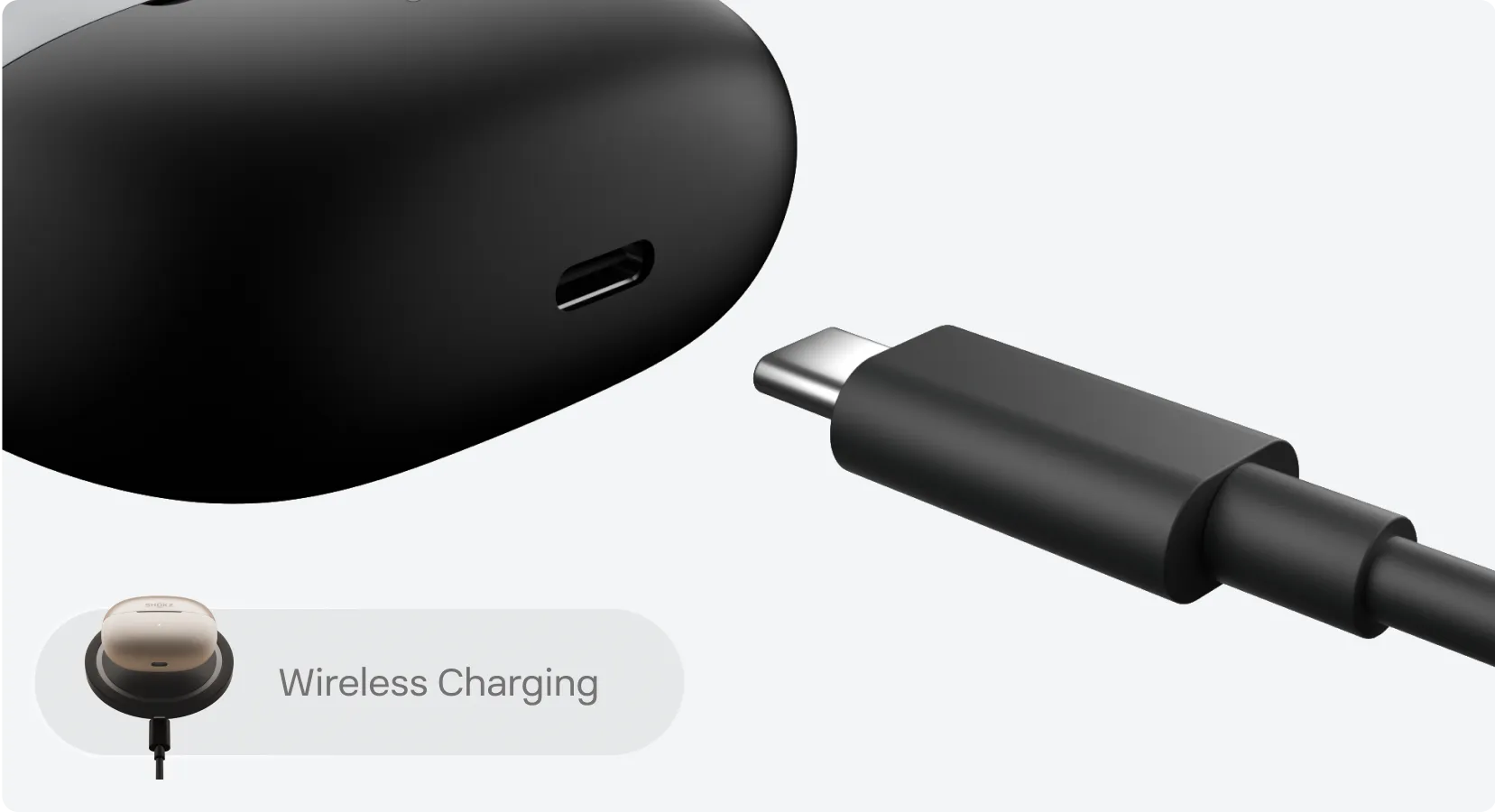
Up to 16 hrs of playback, 12 hrs of talk time and a 5-min Quick Charge for 2 hrs of calls.

Bluetooth 6.0 stability
Stay connected up to 30 m (98 ft).

Compact carrying case
Slide it into your laptop bag and take your setup anywhere.

Control at your fingertips
Adjust volume, mute and show call status without breaking focus.

Seamless MultiPoint Pairing
Connect two devices at once and switch between them effortlessly.
Zoom and Webex certified*
Enjoy smoother online meetings.
All-day battery
Up to 16 hrs of playback, 12 hrs of talk time and a 5-min Quick Charge for 2 hrs of calls.
Bluetooth 6.0 stability
Stay connected up to 30 m (98 ft).
Compact carrying case
Slide it into your laptop bag and take your setup anywhere.
Control at your fingertips
Adjust volume, mute and show call status without breaking focus.
Seamless MultiPoint Pairing
Connect two devices at once and switch between them effortlessly.
What's in the box


OpenMeet2 UC
Carry Case
USB2.0 CM-CM Data Cable
User Guide
Legal Information
Warranty Card
Shokz Loop 120 USB-C Wireless Adapter
Carry Case
USB2.0 CM-CM Data Cable
User Guide
Legal Information
Warranty Card
Shokz Loop 120 USB-C Wireless Adapter
OpenMeet2 UC
Carry Case
USB2.0 CM-CM Data Cable
User Guide
Legal Information
Warranty Card
Shokz Loop 120 USB-A Wireless Adapter
Carry Case
USB2.0 CM-CM Data Cable
User Guide
Legal Information
Warranty Card
Shokz Loop 120 USB-A Wireless Adapter
OpenMeet2
Carry Case
USB2.0 CM-CM Data Cable
User Guide
Legal Information
Warranty Card
Carry Case
USB2.0 CM-CM Data Cable
User Guide
Legal Information
Warranty Card
OpenMeet2 UC
Carry Case
USB2.0 CM-CM Data Cable
User Guide
Legal Information
Warranty Card
Shokz Loop 120 USB-C Wireless Adapter
Carry Case
USB2.0 CM-CM Data Cable
User Guide
Legal Information
Warranty Card
Shokz Loop 120 USB-C Wireless Adapter
Which Product Is Right For You?

Audio Technology
Shokz DualPitch™ Technology
+ LeakSlayer™ 3.0
+11 mm × 21 mm Speaker
Shokz DualPitch™ Technology
+ LeakSlayer™ 3.0
+ 11 mm × 18 mm Speaker
Stability Technology
Shokz GlideFit™
Shokz TitaniumFlex™
Microphone Type
Dual AI noise-canceling microphones
Up to 99.4% background noise reduction
Dual AI noise-canceling microphones
Up to 98.6% background noise reduction
Bluetooth Connection
Bluetooth 6.0
Bluetooth 5.4
Sweat & Water Resistant
/
/
Quick Charge
5-Min = 2 Hours of Talk Time
5-Min = 2 Hours of Talk Time
Battery Life
Up to 12 Hours Talk
Up to 16 Hours Listen
Up to 14 Hours Talk
Up to 15 Hours Listen
Charge Time
1.5 Hours
1.5 Hours
Weight
77.9 ± 1 g
78 ± 1 g
FAQ
Get Started
Pairing
Control Guide
What is the difference between OpenMeet2 and OpenMeet2 UC?
| Product | OpenMeet2 | OpenMeet2 UC |
|---|---|---|
| Wireless Adapter | × | √ |
| Zoom & Webex Certified | × | √ |
| Shokz Connect for PC | × | √ |
| Shokz App for Mobile Device | √ | √ |
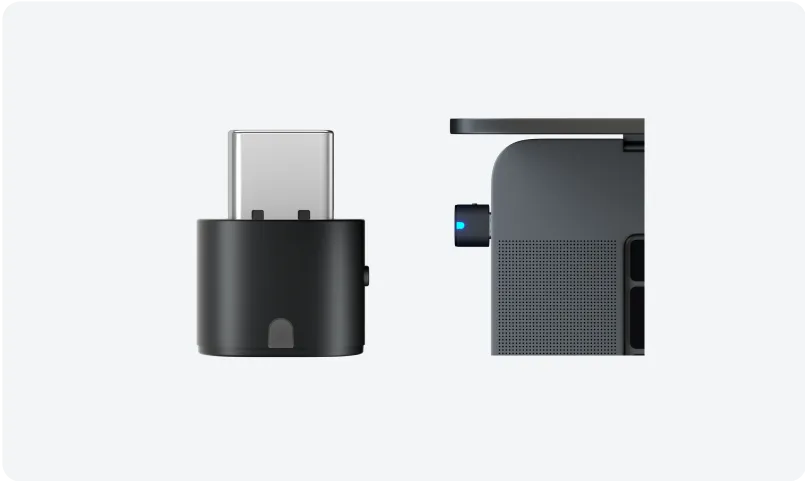
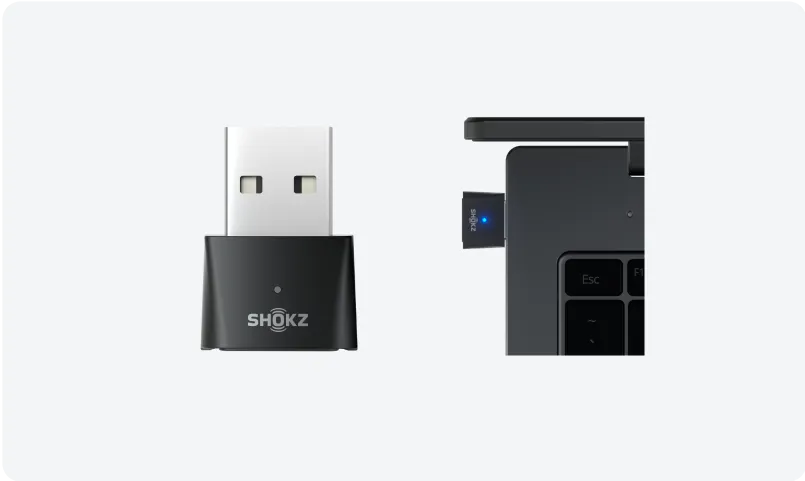
OpenMeet2 UC consists of an OpenMeet2 headset and a Loop120 Wireless Adapter. It offers both Bluetooth and dongle connectivity. If you purchase the OpenMeet2 headset, it does not include the Loop120 Wireless Adapter, and you can only connect via Bluetooth (Note: The Loop120 Wireless Adapter can be purchased separately if needed in the future). OpenMeet2 UC is perfect for office environments, providing a more stable wireless connection than Bluetooth, and coming with Zoom and Webex certification, ensuring uninterrupted productivity. If you primarily work on a computer, OpenMeet2 UC would be the better choice.
What to do if the microphone/speaker on OpenMeet2 is not working?
Please check the following steps: 1. Confirm that the headset is successfully connected to your device. If you are using a wireless adapter to connect to a computer, make sure the headset is powered on, the adapter displays a solid cyan light, and the headset voice prompt says "PC Connected." If you are connected to a mobile device, make sure OpenMeet2 appears as Connected in the Bluetooth device list, and the headset voice prompt says "Device 1 Connected" or "Device 2 Connected." 2. Confirm that OpenMeet2 is selected as the audio input/output device. If you are using a wireless adapter to connect to a computer, go to your computer’s audio settings and select Loop120 as both the input and output device. Also, ensure the Loop120 is selected as the audio device within your meeting software settings (e.g., Microsoft Teams, Zoom, Webex). If you are connected to a mobile device, select OpenMeet2 as the audio output device in the playback or call interface. If the microphone or speaker still does not work after completing the steps above, try resetting the headset and the wireless adapter, then reconnect the device. If the issue persists, please contact our customer support team for further assistance.
How to connect OpenMeet2 UC to Shokz Connect?
Please follow the steps: 1. Plug Shokz Loop120 into the PC. 2. OpenMeet2 UC pairs and connects with Shokz Loop120. 3. When the Shokz Connect interface displays "Loop120" and "OpenMeet2 UC," it means the connection was successful.
How do I mute/unmute the microphone?
To mute the microphone, click the Mute Button once during a call while the microphone is unmuted, or move the Microphone Boom Arm up. To unmute the microphone, click the Mute Button once during a call while the microphone is muted, or move the Microphone Boom Arm down.
How do I mute/unmute the microphone?
To mute the microphone, click the Mute Button once during a call while the microphone is unmuted, or move the Microphone Boom Arm up. To unmute the microphone, click the Mute Button once during a call while the microphone is muted, or move the Microphone Boom Arm down.
Still have questions? Our Shokz experts are here to help.
Get Help
Stay Tuned In!
Enter your email address to get a surprise discount for your first order!
Follow us
Stay ahead with our latest news, share your Shokz stories, and tag #ShokzSquad for a chance to be featured
