Your Guide for Using OpenFit Pro

Introduction
If you just purchased the all-new OpenFit Pro and you’re wondering how to get the most out of your new earbuds, you’ve come to the right place. OpenFit Pro builds on its predecessors with two key breakthroughs: Open-Ear Noise Reduction and enhanced audio powered by Shokz SuperBoost™. In this article, we’ll cover all the essential controls and features—from button functionality to wireless charging and multipoint pairing—so you can unlock the full potential of OpenFit Pro.
How to Wear
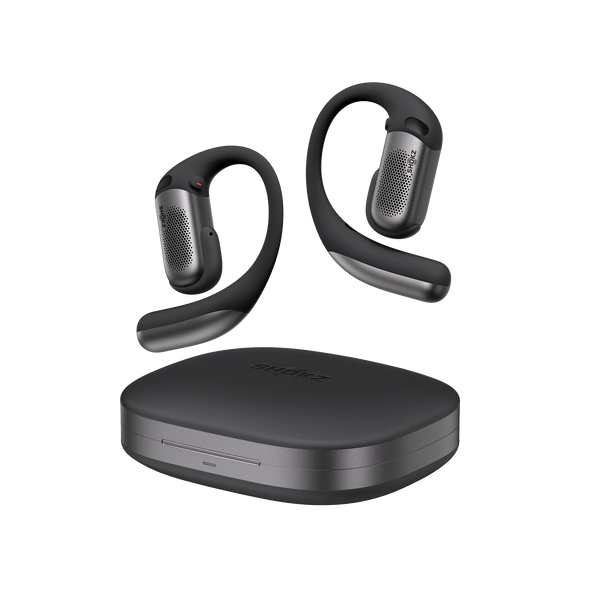
Like other models in the OpenFit Series, OpenFit Pro is easy and intuitive to wear. Start by removing the earbuds from the charging case and positioning them so the end of the hook aligns with the rim of your ear. Then gently rotate the earbuds clockwise, allowing the hook to slide behind and wrap comfortably around your outer ear while the core rests snugly against the inside. That’s it—you’re ready to enjoy your favorite audio.
Open-Ear Noise Reduction
The newest and most groundbreaking upgrade to OpenFit Pro is open-ear noise reduction. To turn this feature on or off, press and hold the Physical Button on either earbud. You’ll hear two tones when activating the feature, and you can release the button after the first tone. To manually adjust the noise-reduction level, simply open the Shokz App.
Please note that noise reduction requires both earbuds to be worn and is not supported when using only one earbud.

Optimized for Dolby Atmos
OpenFit Pro is the first model in the series to be optimized for Dolby Atmos. This feature delivers immersive, multi-dimensional sound and can be activated through the Shokz App. You have two options: enable “Dolby Audio” on its own, or turn on both “Dolby Audio” and “Head Tracking” together to elevate mobile content—including Dolby Atmos-supported media—to a new level of realism.
Please note that “Dolby Audio” and “Head Tracking” are two separate toggles within the broader “Optimized for Dolby Atmos” feature. “Head Tracking” can only be enabled after “Dolby Audio” has already been turned on.

Earbud Controls
OpenFit Pro features one Physical Button on each earbud, located on the side of the core just below the Shokz logo. These buttons control music playback, incoming calls, and volume adjustments.
Music Control
Press the button once to play or pause music, double-click to skip to the next track, and triple-click to return to the previous track. To adjust volume, press and hold the button on the right earbud to increase volume, or press and hold the button on the left earbud to decrease it.
Call Control
When receiving a call, press the button once to answer and press again to hang up. Double-clicking the button will reject the call and send it to voicemail.

Wireless Charging
The OpenFit Pro charging case supports Qi-certified wireless charging. To begin, connect your wireless charging pad to a power source and confirm it’s functioning properly. Place the charging case at the center of the pad with the Shokz logo facing up. Improper alignment may result in slow or ineffective charging.
While charging, the indicator light will remain solid orange. Once fully charged, the light will turn green, indicating that the case is ready to be removed and used.

Multipoint Pairing
With Multipoint Pairing, OpenFit Pro allows you to seamlessly switch between two connected devices. When opening the charging case for the first time, the earbuds will automatically enter Bluetooth pairing mode, and the indicator will flash orange and green alternately. To complete pairing, open the Bluetooth settings on your device and select “OpenFit Pro by Shokz.”
To re-enter pairing mode, place both earbuds back into the charging case and press and hold the Charging Case Button for three seconds until the indicator flashes orange and green again.
To connect a second device, open the Shokz App and enable the “MultiPoint Pairing” option. Confirm activation when prompted, then select “Connect to the Second Device” and follow the on-screen instructions. Once paired, you can manage both Bluetooth connections directly through the Shokz App.
Switching Between EQ Modes
OpenFit Pro includes five preset EQ modes and two customizable EQ profiles with 10-band adjustment.
Standard Mode delivers balanced sound for everyday listening. Vocal Mode enhances mid-range frequencies, making it ideal for audiobooks, podcasts, and spoken content.
Bass Boost enhances low frequencies for more energetic, rhythm-driven music, while Treble Boost emphasizes higher frequencies for lighter, more relaxing listening.
Private Mode is designed for quiet environments such as airplanes or libraries. By managing high-frequency output, it helps control sound leakage so you can listen without disturbing others.
All EQ modes can be toggled and customized through the Shokz App.

Conclusion
Congratulations on your new OpenFit Pro, our latest shokz open ear headphones. We hope this guide helps you get the most out of your experience. Whether you’re training at the gym, commuting, or focused at work, OpenFit Pro delivers premium clarity, comfort, and awareness—wherever life takes you.


