Bluetooth Headphones Connected but No Sound: Effective Tips and Fixes
Few tech frustrations are as common as experiencing Bluetooth headphones connected but no sound, whether you’re unwinding with a podcast in your backyard in Austin, or mid‑call on a Zoom from your Chicago apartment. Even with the “connected” status displayed and a fully charged battery, your headphones remain silent.
In most cases, though, this isn’t a total hardware failure. This ultimate guide gets straight to the point: we’ll pinpoint what’s really causing the pesky issue, show how a few quick setting tweaks can fix it, and walk you through easy-to-follow, step‑by‑step solutions so you can swiftly restore your audio and start listening again with minimal fuss.
Why Your Bluetooth Headphones Are Connected but Have No Sound
To resolve the audio issue, you must first identify its underlying cause. In most cases, the silence results not from a single failure, but from misaligned settings, outdated drivers, or transient connection glitches. Here, we explore the three primary reasons why users encounter the frustrating scenario of Bluetooth headphones connecting but no sound.
Audio Output Settings Are Incorrect
Often, the issue is simply that your computer or smartphone has not assigned your Bluetooth headphones as the primary device for sound playback. Even when paired successfully, the system may retain its prior configuration, continuing to play sound through built-in speakers or another connected audio device.
Volume or Media Settings Muted
This may seem too simple, but a muted setting is a common fix. Many new devices have different volume controls for calls, notifications, and media audio. Your device can be connected, but if the media volume is low or muted—either on the device or on the wireless headphones—you will hear no sound.
Outdated Bluetooth or Audio Drivers
On PCs, drivers act as essential intermediaries that enable the operating system to communicate with hardware, such as your Bluetooth adapter and sound card. If these drivers become outdated, damaged, or incompatible with a new Windows update, the connection may appear active, but audio data transfer may fail.
Fix Bluetooth Connection but No Sound on Your PC
Managing wireless audio on desktop systems can be tricky. If you face the problem of Bluetooth connected but no sound on your PC, the steps outlined below will guide you in re-establishing control of your playback settings.
Check Your Volume Levels
First, verify your basic audio levels. Open the volume mixer by right-clicking the speaker icon on the taskbar. Make sure the overall system volume is turned up, and, crucially, check that the volume slider corresponding to your Bluetooth headphones is neither muted nor set too low. Remember, certain applications contain their own in-app volume controls, which should be examined as well.
Set Your Default Playback Device
This adjustment ultimately resolves the issue. Go to the Sound Settings (search for "Sound Settings" in the Start menu). In the "Output" section, identify your Bluetooth headphones. Although they may display as "Connected," click to select them and choose "Set as Default Device." This step directs all system and application audio exclusively to your headphones.
Enable Bluetooth Support Service
Occasionally, essential Windows services can be disabled, preventing proper function. Press Windows key + R, type services.msc, and hit Enter. Locate the Bluetooth Support Service in the list. Right-click it, select Properties, and set the Startup type to Automatic. If the service is not currently active, click Start.
Update Your Audio and Bluetooth Drivers
Obsolete drivers are a frequent source of connection problems. Launch Device Manager (via the Start menu). Expand the Bluetooth section and the Sound, video and game controllers section. Right-click your Bluetooth adapter and audio device, and select Update driver. Opt to “Search automatically for updated driver software.”
Run Windows Troubleshooter
Windows provides a set of built-in diagnostic tools capable of automatically identifying and resolving common issues. Open the Start menu and search for "Troubleshoot settings." Choose "Other troubleshooters," then find the options for Bluetooth and Playing Audio. Run them one after the other. The troubleshooter will scan your system for known problems and attempt an automated repair.
Check for Audio Problems in Device Manager
A yellow exclamation mark appearing next to your audio device in Device Manager typically indicates a driver conflict or hardware issue. Right-click the problematic entry and select Uninstall device. Then, click Action in the menu bar and select Scan for hardware changes. This process will trigger a reinstallation of the device along with its drivers, potentially resolving corruption-related errors.
Solve Bluetooth Connected but No Sound on Android Devices
Thanks to Android’s streamlined operating system, Android devices are usually straightforward to troubleshoot. Here’s how to fix Bluetooth headphones connected but no sound on your Android phone or tablet.
Turn up Your Device’s Media Volume
Unlike a simple phone call, media audio on Android devices is governed by a specific volume slider. To make headphones louder, start playing audio and then press the physical volume-up button. When the slider appears, make sure the one labeled “Media Volume” is set to an appropriate level.
Enable Media Audio
When headphones are paired with an Android device, you are often asked what the Bluetooth connection should be used for. To check this setting, go to Settings → Connected devices → Connection preferences → Bluetooth. Tap the gear icon next to your connected headphones and make sure the Media audio toggle is switched ON. If it’s off, your phone may route audio to the speaker or another output.
Disable Nearby Device Scanning
Sometimes helpful features can get in the way. Android’s "Nearby device scanning" helps your phone find gadgets quickly, but it can also interrupt your audio. Here’s how to turn it off: go to Settings → Location → Location services. Find and turn off the toggle for Bluetooth scanning (or "Wi-Fi and Bluetooth scanning"). This helps your phone stick to your headphone’s audio connection instead of searching for new devices in the background.
Reset Network Settings
If multiple settings have been changed over time, a network reset can eliminate conflicts without removing your personal data. Go to Settings → System → Reset options (or General Management → Reset on some phones). Tap Reset Wi-Fi, mobile & Bluetooth. This will clear all saved Wi-Fi passwords and Bluetooth pairings, giving you a fresh, clean connection.
Turn off Headphone Mode
If your Android gets stuck in headphone mode after unplugging wired headphones too quickly, this forces the device to route all sound through the wired connection, silencing the Bluetooth connection. A simple fix is to plug a pair of wired headphones back in, then immediately unplug them again, this often clears the stuck state.
Reset The Bluetooth Connection
A simple reset is often your best bet. Go to your phone's Bluetooth settings, tap the gear icon next to the problematic headphones, and select Forget (or Unpair). Then, put your headphones back into pairing mode (usually by holding the power button) and connect them to your Android device again from scratch. This creates a clean connection profile and often resolves stubborn audio issues.
Common Myths about Bluetooth Connected but No Sound
Misinformation about wireless audio can lead to unnecessary worry or costly replacements. Let's debunk a few common misconceptions about why you have Bluetooth headphones connected but no sound issue.
No Sound Isn’t Total Damage
In most cases, a silent Bluetooth connection is due to software or settings conflicts outlined above, not a broken pair of headphones. The fact that your headphones appear as “Connected” in Settings is a good sign — it means the core hardware and Bluetooth chips are functioning as intended, showing that Bluetooth works, and the fix is usually quick.
Bluetooth Version Mismatch
A common fear is that an older device cannot properly connect to new headphones. Bluetooth version differences like Bluetooth 5.0 vs. 5.3 mainly affect features such as range and battery life, and the standard is designed to be backward compatible. In practice, a version mismatch rarely causes complete silence, if the devices pair successfully, the hardware is likely fine.
Connection Doesn’t Ensure Audio
Seeing “Connected” means the two devices completed a digital handshake, but it doesn’t automatically mean the audio stream is flowing. For sound to actually reach your ears, a few things still need to line up: the correct output device must be selected, volume levels (on both phone and headphones) need to be up, and the correct media audio profile has to be active.
How to Prevent Bluetooth No-Sound Issues
A few simple habits can significantly save you from encountering the dreaded Bluetooth headphones connected but no sound issue.
Upgrade to a Reliable Audio Solution
If you're always troubleshooting or resetting your connection, it might be time to invest in more reliable hardware. Shokz earbuds, with newer Bluetooth chips and support for modern audio codecs, tend to offer stronger, more consistent performance, whether you're listening on your daily commute or making an important call.
OpenFit 2+
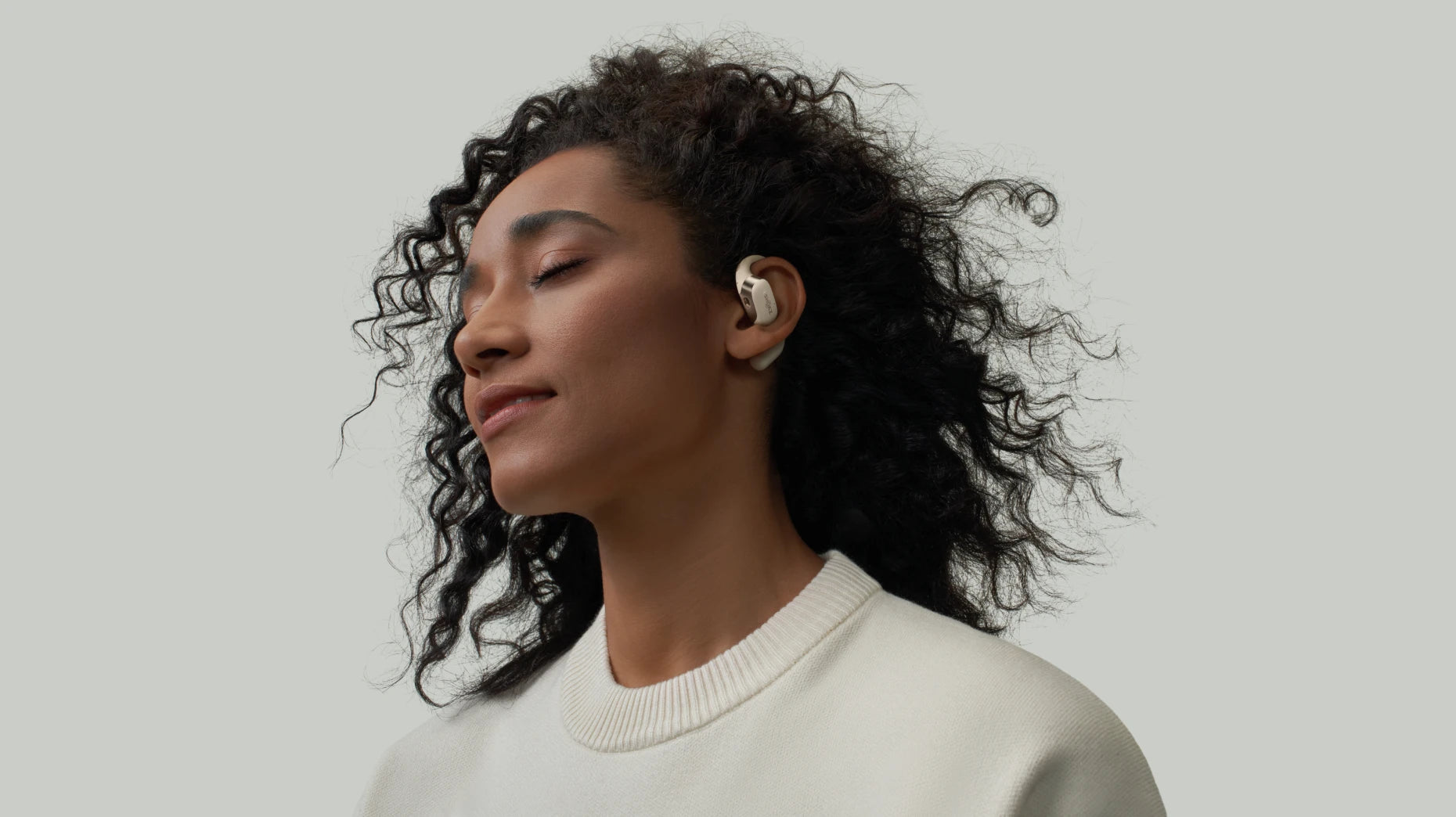
With their comfortable open-ear design, the OpenFit 2+ open earbuds let you stay aware of your surroundings while delivering stable Bluetooth audio, perfect for music, podcasts, movies, and calls. Whether you're commuting, relaxing, or powering through a workout, they’re designed to keep up with your day.

Key Features
MultiPoint Pairing: Seamlessly switch between your phone and PC without having to manually re-pair.
Immersive Dolby Audio: Experience premium, spatial sound for all your media content.
Custom Sound Profiles: Pick from 4 preset EQ modes or create your own with 2 customizable equalizers to fine-tune your audio.
Extended Battery Life: Get up to 48 hours of total listening time with the portable charging case.
Keep Devices Updated
Make it a routine to check for and install the latest OS and firmware updates. These often include crucial patches and fixes that address known Bluetooth connectivity bugs and improve the stability of audio profiles.
Stay Within Bluetooth Range
Bluetooth is a short-range wireless technology. Bluetooth works best when your devices are relatively close. While newer versions have improved range, physical obstacles like thick walls or excessive distance can weaken the signal. For the steadiest connection, try to keep your source device within 30 feet of your headphones.
Fully Charge Before Use
Although a low battery usually causes a complete disconnection, extremely low power can sometimes lead to inconsistent audio data transmission. Get in the habit of charging both your headphones and your phone (or other source device) fully to ensure stable power delivery.
FAQ
Why are my Bluetooth headphones so silent?
Most of the time, it's because the media volume on your phone or PC is set too low, or muted entirely. Another common reason is that your device might still be sending audio to its built-in speakers instead of your headphones, even if they show as connected. Always double-check your sound settings to make sure the correct output is selected.
Does Bluetooth connection affect audio quality?
Yes, but not as much as it used to. Bluetooth does compress audio data to send it wirelessly, so you might notice a slight difference compared to a wired connection. But thanks to continuous advancements in modern Bluetooth versions and high-quality audio codecs, the sound is now rich and clear enough for everything from streaming music to watching movies.
What causes Bluetooth audio to stutter?
Audio stuttering usually happens when the Bluetooth signal gets interrupted. This can be due to interference from other wireless devices (like Wi-Fi routers or microwaves), physical obstacles like walls, or when your phone or computer is running too many apps at once (processor overload) and can't keep up with the audio stream.
Can a Bluetooth version mismatch cause no sound?
Not really. Bluetooth is designed to be backward compatible, so even if your phone uses an older version and your headphones a newer one, they should still connect and play audio. If you're getting no sound at all, it's almost always a settings or software issue, not a version problem.
Why do headphones only work when bent at a certain angle?
This is a sign of physical damage inside the headphones. It indicates a broken or damaged internal wire (a loose solder joint or frayed/cable) within the headphone's earcup or headband. When you bend them, the connection temporarily completes, allowing sound to pass through. It's not a Bluetooth issue, and the headphones will likely need repair.
Conclusion
Encountering Bluetooth headphones connected but no sound is a common hurdle, but it is rarely a sign of total hardware failure. By systematically checking your volume controls, setting the correct default playback device, and ensuring your drivers and network settings are up to date, you can resolve the issue. When the silence hits, just know that the fix is often just a click or a toggle switch away, ready to bring your soundtrack back to life!
Author Information

guides on Shokz
Related Posts