How to Connect Headphones to TV (Wireless Earbuds — Step‑by‑Step)

Tired of turning the volume down late at night? Want to enjoy a movie's deep sound design without disturbing anyone? Try connecting your headphones to your TV. It’s a simple yet effective way to personalize your viewing experience. This comprehensive guide will show you how to connect headphones to TV. Plus, we’ll also cover helpful maintenance tips and common connection issues to ensure your setup works smoothly every time.
Why Connect Headphones to Your TV?
Connecting headphones to your television can really enhance your viewing pleasure. You can be more focused on the show and hear more sound details.
Immersive Sound Experience
Listening through headphones, you hear the full range of audio, from soft whispers to booming explosions. It’s like bringing the whole cinema's surround sound right to where you’re sitting.
Privacy and Noise-Free Listening
With headphones you can enjoy a late-night action flick without worrying about waking up the family. This setup provides your own audio “bubble” where you can listen at your preferred volume.
How to Connect Wireless Headphones to TV
There are a few standard steps to learn how to connect wireless headphones to TV. The specific menu layouts will differ slightly between smart TV manufacturers, but the basic pairing process remains the same.
Enable “Pairing Mode” on your Bluetooth Headphones
First, your wireless headphones should be charged and ready to be discovered. This usually involves pressing a dedicated "Pairing" button until an indicator light starts flashing. This indicates it is actively searching for a connection.
Open TV Settings Menu
On your TV remote, go to the home screen or settings menu. This is usually represented by a gear icon. This is the main location for adjusting all of your TV's operational features.
Enable Bluetooth on your TV
In the settings menu, look for sections labeled "Sound," "Accessories," "Remote & Accessories," or "Network." Here you are trying to activate the TV's Bluetooth discovery mode which allows it to search for devices.
Look for an Option like "Pair New Device"
The TV will be able to scan for available devices once Bluetooth is active. Select the option that prompts the TV to start searching for new devices.
Complete the Pairing Process
Your TV screen should display a list of devices it found. Then select your headphones' model name from the list. The TV and headphones will then establish a secure connection. Your private listening experience is now ready!
Best Wireless Headphones for TV
To find the best wireless headphones for TV, look for ones that offer great sound and low latency. Shokz open ear headphones are among the top recommendations, providing reliable TV connectivity and superior audio performance.
OpenRun Pro 2
These premium open-ear bone conduction headphones offer upgraded sound quality and comfort. They are ideal for long viewing sessions. OpenRun Pro 2 can easily connect to your TV to watch a vibrant movie or an exciting sports game. They are comfortable, and provide an immersive, private experience.
Dual Drivers: They utilize both air conduction and bone conduction drivers to deliver rich, deep bass and clear, dynamic high notes.
3D Audio: Smart algorithms and professional drivers work together to create a stereo surround effect. This makes every movie or game feel more exciting.
Bluetooth 5.3: Bluetooth 5.3 has a range of over 30 feet. This allows you to roam freely without worrying about dropouts or disconnection.
Advanced Sound Leakage Control: These headphones ensure that your audio remains audible only to you. This provides privacy for you and a quiet environment for others.
12-Hour Battery & Quick Charge: These have a solid 12-hour runtime and a 5-minute fast charge provides 2.5 hours of listening.
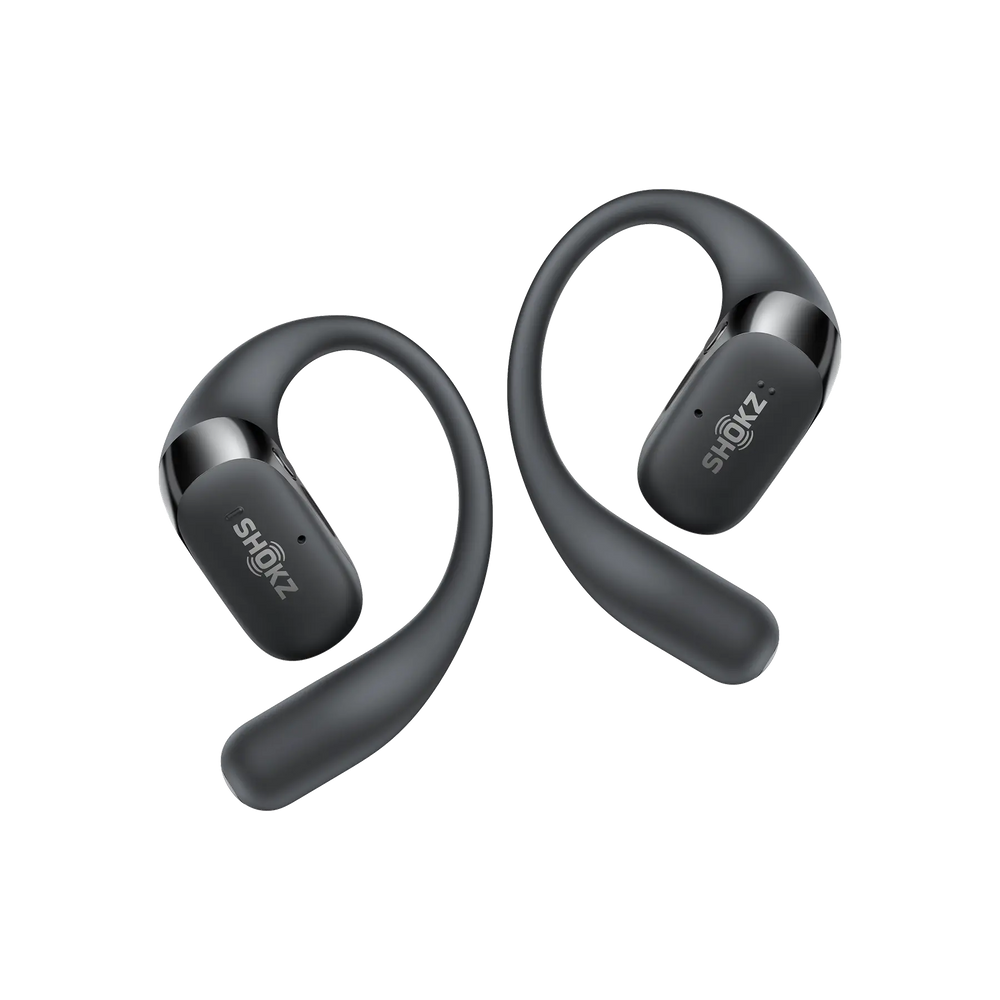
OpenFit 2+
OpenFit 2+ are open-ear bone conduction headphones with a comfortable, secure ear-hook design. Lightweight yet delivering rich audio performance, using OpenFit 2+ is as simple as slipping them on, pairing with your TV, and enjoying a stable Bluetooth connection that brings your entertainment to life.
Dolby Audio: Integration of Dolby Audio technology enhances the sound profile. They deliver a dynamic and rich listening experience that makes movies and sports more engaging.
Ultra-Soft Silicone™ 2.0: The headphones feature an Ultra-Soft Silicone™ 2.0 coating, ensuring a secure and stable fit. You will find them gentle and comfortable for long hours of television viewing.
Extended Battery and Charging: They offer a total auditory time of up to 48 hours with the charging case. The case supports both quick charging and convenient wireless charging for maximum readiness.
Lightweight Design: Weighing only 9.4 grams per earbud, this design minimizes pressure. This ensures you can wear them for extended periods without feeling ear discomfort.
OpenDots ONE
These are lightweight open-ear earbuds with a clip-on design. They are designed for stable, all-day comfort. OpenDots ONE provides balanced sound and is very discreet. This makes them an excellent choice for wireless headphones for TV.
Feather-Light Comfort: Each earbud weighs only 6.5g, providing a feather-light and comfortable fit for long movies.
Powerful Audio: They include strong audio drivers and Dolby Audio compatibility. They deliver a rich and clear audio experience, from subtle sound effects to a full orchestra.
DirectPitch™ Technology: The innovative sound control technology minimizes sound leakage. This way your audio remains private and will not disturb others.
Extended Battery Life: The charging case offers a total listening runtime of 40 hours. The case also supports convenient wireless charging.
Tips for Better TV Listening with Headphones
Now that you have connected your headphones to your TV, here are a few more simple tips. These will help you have an enjoyable listening experience every time.
Check for Audio Lag
If the sound doesn't quite match the actors' lips, you may have audio-video synchronization issues. Go to the TV’s audio menu and look for a "Lip Sync" or "Audio Delay" setting. Try adjusting the settings to correct this lag.
Keep Devices within Range
Keep your headphones and the television within the recommended operational range, typically about 30 feet. This will minimize any disruptions to your Bluetooth connection.
Adjust Volume from Headphones
If possible, make adjustments directly on your headphones, not just the TV's main volume setting. This allows you to fine-tune your personal audio level perfectly.
Regularly Charge and Update
Always make sure your wireless headphones are fully charged before a long viewing session. Also, install any firmware updates for both your TV and headphones to ensure peak performance.
Common Troubleshooting Tips
Sometimes, the Bluetooth connection process doesn't go smoothly. Don't worry, here are a few simple fixes for common issues.
Reset Pairing
If your headphones fail to connect, try deleting the previous pairing from the TV’s device list. Then restart the pairing process from scratch. This often resolves minor communication glitches.
Update TV Software
Outdated TV software versions can cause compatibility issues with newer Bluetooth devices. Check your TV’s settings for a "Software Update" option. Then install the latest firmware if available.
Use a Different Port or Transmitter
If your TV doesn’t have Bluetooth built in, consider purchasing an external Bluetooth audio transmitter. This plugs into the TV's analog or optical audio output to enable wireless connectivity.
Keep Devices Close
For the initial pairing, bring your headphones as close as possible to the TV. This ensures a strong signal during the crucial discovery and pairing phases. This not only improves the chances of a successful connection, but also maintains it.
FAQ
Why won’t my TV detect my headphones?
Make sure your headphones are in pairing mode. Check that the TV’s Bluetooth is on and no other device is connected. Check that headphones are not connected to any other nearby device. Try moving them closer together. If it still doesn’t work, check whether your TV actually supports Bluetooth audio output. Some older models don’t have Bluetooth. In that case, you may need a Bluetooth transmitter that connects via the TV’s audio output or USB port.
Can you connect two headphones to a TV?
Some high-end smart TVs or external Bluetooth transmitters support dual-audio output. This enables two sets of headphones to connect simultaneously.
Why are my headphones out of sync with my TV?
This is typically due to audio lag (latency) inherent in Bluetooth transmission. Look for low-latency headphones as is typical for gaming. Otherwise, check your TV's menu for audio delay settings to correct the timing.
Can others hear the TV if I use headphones?
Generally, no. Once the headphones are successfully paired, most TVs automatically mute the built-in speakers. The audio is then sent exclusively to your connected headphones. This provides privacy for you and increased audio immersion.
Conclusion
Can you connect headphones to TV? Absolutely yes! It is a simple process that offers immense benefits. You can have more privacy and enjoy a profoundly cinematic sound experience. By following this step-by-step guide, you now know how to connect and have tips for some common troubleshooting issues. Enjoy your new, personalized sound bubble. It’s time to re-watch all your favorite movies!