How to Fix Headphones Connected but No Sound: Audio Output, Volume, and Driver Solutions

You press play, lean back, and… nothing. Your Bluetooth headphones show as connected, but all you get is silence. Media skips, audio drops, and frustration sets in. This common problem can ruin music, podcasts, and calls, but it’s usually easy to fix. In this guide, you’ll learn why it happens, step-by-step fixes for PC and Android, and tips to keep your audio working smoothly.
Why Your Bluetooth Headphones Are Connected But Have No Sound
Even when your headphones appear connected, audio may not reach them for several reasons. Understanding these common causes helps troubleshoot effectively.
1. Volume or Media Settings Muted
Sometimes the simplest problem is the culprit. Check both device volume and app-level volume. Some apps maintain their own audio settings independent of system volume.
2. Audio Output Settings Are Incorrect
Your system may still be sending audio to another device, such as built-in speakers, even though Bluetooth works and the headphones are connected. On a PC, check Sound Settings to ensure your Bluetooth headphones are selected as the default playback device. On Android, verify that media audio is enabled under Bluetooth settings.
3. Interference or Distance Issues
Bluetooth signals can degrade with interference from other wireless devices or when headphones are out of range. Keep your headphones within about 30 feet (10 meters) of the source device and away from potential interference.
4. Outdated Bluetooth or Audio Drivers
Old drivers can prevent audio transmission or cause intermittent sound. Updating drivers often resolves connection instability and restores proper functionality.
Fix Bluetooth Connection but No Sound on Your PC
If your headphones are silent on a Windows PC, follow these step-by-step solutions:
1. Check Your Volume Levels
Ensure your system and media volumes are turned up and not muted. Some laptops have separate controls for system sounds and media.
2. Set Your Default Playback Device
Go to Sound Settings > Output and select your Bluetooth headphones as the default playback device.
3. Enable Bluetooth Support Service
Windows requires the Bluetooth Support Service to function properly. Open Services, find it, and confirm it is running.
4. Update Your Audio and Bluetooth Drivers
Visit your device manufacturer’s website or use Windows Update to download the latest drivers. This can fix compatibility issues and restore proper audio routing.
5. Run Windows Troubleshooter
Windows has a built-in troubleshooter for audio issues that can automatically detect and repair common problems.
6. Check Device Manager for Errors
In Device Manager, look for warning icons under “Sound, video and game controllers” or “Bluetooth.” Update or reinstall drivers as needed.
Solve Bluetooth Connected but No Sound on Android Devices
Android devices have their own quirks. Here’s how to address common scenarios:
1. Turn Up Your Device’s Media Volume
Some Android devices separate media, ringtone, and notification volume. Make sure media volume is fully on.
2. Enable Media Audio
Ensure your Bluetooth headphones are allowed to play media under the Bluetooth connection settings.
3. Re-pair the Bluetooth Connection
Unpairing and pairing your wireless headphones again often resolves persistent connection problems.
4. Turn Off Headphone Mode
If your device mistakenly thinks wired headphones are connected, Bluetooth audio may be disabled. Restarting or toggling headphone mode can fix this.
5. Disable Nearby Device Scanning
Turning off nearby device scanning can reduce interference and improve connection stability.
6. Reset Network Settings
This clears saved Wi-Fi, paired devices, and Bluetooth settings, giving a fresh start for stubborn connection problems.
How to Prevent Bluetooth No-Sound Issues
Taking proactive steps can prevent most common headphone audio problems and improve reliability.
1. Upgrade to a Reliable Audio Solution
If you’ve tried all troubleshooting steps and still face dropouts or silence, your device may be the limiting factor. Shokz open ear headphones use advanced connection chips and high-quality codecs for stable, low-latency Bluetooth audio, reducing interruptions and ensuring smoother listening.
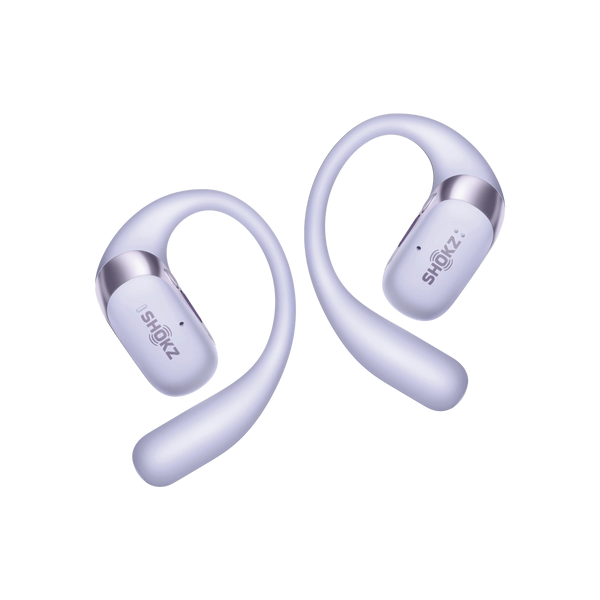
The OpenFit 2+ builds on this with a lightweight, open-ear design that rests on the outer ear, providing comfort during long sessions while keeping you aware of your surroundings, making it ideal for music, podcasts, calls, and daily commuting.
Key Features
-
Advanced Bluetooth 5.4 Chip: Ensures faster pairing, stronger signal stability, and fewer dropouts across devices.
-
MultiPoint Pairing: Switch effortlessly between phone and PC without manual re-pairing.
-
Immersive Dolby Audio: Premium spatial sound for all media.
-
Custom Sound Profiles: 4 preset EQ modes plus 2 customizable equalizers for fine-tuning.
-
Extended Battery Life: Up to 48 hours with the portable charging case.
2. Keep Devices Updated
Firmware and software updates often fix bugs and improve Bluetooth stability. Make it a habit to check for updates on your headphones, phone, and computer. This ensures compatibility and helps maintain consistent audio quality.
3. Stay Within Bluetooth Range
Bluetooth signals weaken with distance and obstacles. Keep your headphones within about 30 feet (10 meters) of your device and avoid crowded wireless environments to minimize dropouts.
4. Fully Charge Before Use
Low battery can lead to intermittent audio or sudden disconnections. Always charge your headphones fully before extended listening sessions to maintain stable performance.
Common Myths About Bluetooth Connected but No Sound
Even if headphones show as connected, it doesn’t always mean they’re broken. Here are a few common misconceptions.
1. No Sound Doesn’t Mean Damage
Silence usually points to software issues: wrong audio output, muted system or app volume, or outdated drivers. Before assuming hardware failure, check playback settings, app volume, and pairing.
2. Bluetooth Version Differences Are Not Fatal
Even if your devices use different Bluetooth versions, audio will typically still work. Older or mismatched versions might lack the latest features, such as advanced codecs, but they rarely prevent sound entirely. For example, a device with Bluetooth 4.2 can still play audio through a 5.0 headset, though it may not support the newest enhancements.
3. Connection Doesn’t Guarantee Audio
A “connected” icon doesn’t ensure audio is routed correctly. Your device may still use built-in speakers. Always verify output settings on PCs or toggle media audio on Android/iOS.
FAQ
1. Why are my Bluetooth headphones so silent?
Check your device and app volume, and ensure media audio is enabled. Open-ear headphones may feel quieter than closed-back designs, even at full volume. Adjust equalizer settings or increase device volume if needed for clearer sound.
2. Does Bluetooth connection affect audio quality?
Yes. Factors like interference, distance, and device compatibility can reduce sound quality and overall clarity. Using headphones that support modern codecs such as aptX or AAC helps maintain higher fidelity, especially when streaming HD audio.
3. What causes Bluetooth audio to stutter?
Audio stuttering often comes from low battery, interference from other devices, outdated drivers, or multiple active Bluetooth connections. Restarting your device and ensuring headphones are charged usually resolves most issues.
4. Why do headphones only work when bent at a certain angle?
This usually points to a hardware issue like a loose internal wire. Temporary adjustment may help, but professional repair or replacement is recommended to prevent further damage.
Conclusion
Connected Bluetooth headphones producing no sound is a common frustration, but most issues can be solved with proper settings, updated drivers, and careful device management. Using quality headphones, staying within range, keeping devices updated, and ensuring batteries are charged can prevent most problems. With these steps, listening to music, podcasts, or ASMR over Bluetooth can be smooth and reliable.