How to Improve Sound Quality with the Shokz App: Settings & Troubleshooting

Embracing an open-ear design typically means prioritizing situational awareness and physical comfort over the heavy noise isolation of traditional earbuds. Naturally, this unique hardware approach shapes the baseline acoustic experience, which varies across the Shokz lineup.
However, if you own a compatible Shokz model, you aren't locked into the out-of-the-box sound profile. By pairing your headset with the Shokz app, you can actively tailor your listening experience—bringing out richer vocals, adding a bit more depth to the bass, and sharpening overall clarity to match your daily routine.
Here is a practical look at how to get the most out of your headset's audio capabilities.
Part 1: Optimize Your Listening Experience with the Shokz App
To genuinely improve your listening experience, you need to look past the basic volume buttons and dive into the software. The Shokz app offers specific tools designed to optimize how your transducers deliver sound.
Customize EQ Settings for Your Listening Style
Because each Shokz model features slightly different hardware, the EQ modes available to you will vary. To see what your specific headphones support, open the Shokz App, ensure your headset is connected, and tap on EQ Settings directly on the home screen.
Taking the Shokz OpenRun Pro 2 as an example, the app takes full advantage of its dual-driver system. You typically get access to a Standard Mode for balanced, everyday music listening, alongside a Vocal Mode that crisply highlights mid-frequencies for speech. Furthermore, its custom EQ options allow you to fine-tune specific frequency bands. This flexibility is incredibly helpful for adding a touch of low-end punch to your workouts, proving that open-ear designs can still deliver a remarkably rich and dynamic sound profile when properly adjusted.
Keep Firmware Updated for Audio Improvements
It is easy to dismiss firmware update notifications, but they are often crucial for audio quality. Manufacturers frequently release patches that optimize background audio algorithms, refine the soundstage, improve Bluetooth connection stability, and reduce latency.
To check for updates, navigate to your device settings within the app and look for the firmware version prompt. Follow the on-screen steps to install. Keep in mind, however, that not every single update will result in a dramatic, noticeable change in sound quality—many patches are simply there to fix under-the-hood bugs or improve battery efficiency.
Part 2: Optimize Sound Quality for Different Listening Scenarios
Finding the right sound profile often depends just as much on your environment as it does on your playlist. Fortunately, while custom frequency sliders might vary by device, the vast majority of app-compatible Shokz headphones share core EQ presets—specifically Standard Mode and Vocal Mode. Whether you are fine-tuning a premium model like the OpenRun Pro 2 or wearing your reliable everyday pair, here is a practical guide to matching these universal settings to your current activity.
Best EQ Settings for Running and Outdoor Workouts
When you are dealing with wind noise, traffic, and your own footsteps, subtle audio details tend to get lost.
-
Recommendation: Switch to a Standard or a Bass-heavy profile if your model supports it. If you have custom sliders, elevate the lower frequencies slightly to maintain the rhythm and energy of your workout playlist without drowning out the ambient sounds of the street.
Best EQ Settings for Podcasts and Audiobooks
Spoken word content doesn't need booming bass; it requires mid-range clarity so you aren't straining to hear the narrator over background noise.
-
Recommendation: Vocal Mode is generally your best choice here. It reduces the low-end vibration and amplifies the human voice, making podcasts sound much crisper and easier to digest.
Best EQ Settings for Music Listening
For focused music listening in a relatively quiet environment (like working at your desk), you want a balanced soundstage that respects the original mix of the track.
-
Recommendation: Standard Mode is usually the most reliable option for varied playlists, offering a balanced distribution of highs, mids, and lows without over-emphasizing any single element.
Best EQ Settings for Calls and Video Meetings
Similar to podcasts, calls require excellent voice clarity, but you also want to avoid auditory fatigue during long meetings.
-
Recommendation: Stick to Vocal Mode. Additionally, ensure your headset fits snugly so the microphones can pick up your voice efficiently, reducing the digital compression that sometimes occurs during two-way audio.
Part 3: Fix Common Sound Quality Problems Before Adjusting EQ
Sometimes, software tweaks aren't the answer. If your audio feels fundamentally off, check these physical and situational factors first.
Audio Sounds Too Quiet
Low volume is often just a placement issue. If transducers sit on hair rather than cheekbones, you'll generally lose power. Try shifting them right in front of your ears. Still quiet? Check for sweat buildup muffling the vibrations, or remember that without passive isolation, heavy ambient noise can easily drown them out.
Bass Feels Weak
If you're missing that deep thump, it's usually just the physics of the design. Traditional earbuds rely on a tight seal inside your ear canal to trap low frequencies. Since open-ear models deliberately leave your ears unblocked for situational awareness, a lighter bass response is often a natural trade-off rather than a hardware defect.
That said, you generally don't have to settle for a tinny sound. Modern designs actively work to bridge this acoustic gap. For instance, newer models like the OpenDots 2 clip-on earbuds use specialized technology—like the Shokz Bassphere™ 2.0 system with its dual drivers—to help punch up those lows.
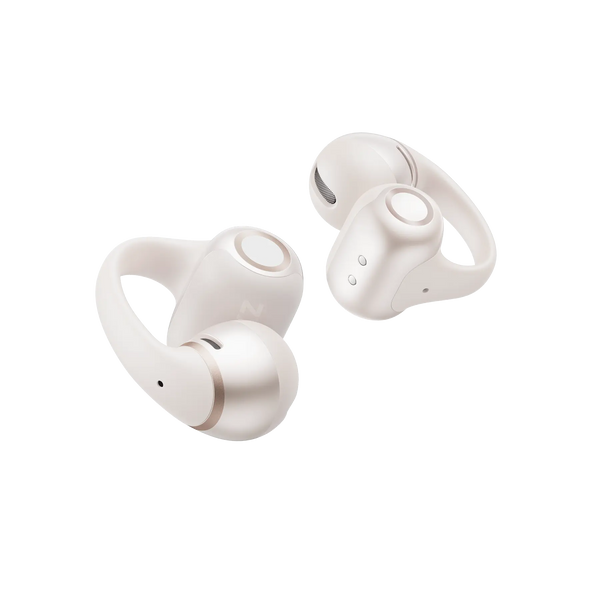
Once you recognize the physical limits of an open-ear fit, you can better pair capable hardware with your app's EQ settings to maximize your low-end experience.
One Side Sounds Louder Than the Other
Lopsided audio often stems from an uneven fit, with one earpiece hovering closer to your ear canal. Gently brushing debris off the speaker mesh or verifying your phone’s balance slider usually helps. Otherwise, a quick firmware update or battery check can occasionally clear up lingering connection bugs.
Audio Quality Changed After an Update
If your headphones suddenly sound different or "muddy" after a firmware patch, your EQ preferences might have reset to default. Open the app and select your preferred mode. If the sound is still glitchy, performing a quick factory reset on the headset generally clears up lingering software conflicts.
FAQ
Q1: Bone Conduction vs. Air Conduction: What is the physical feedback when adjusting "heavy bass" in the App?
A: When boosting bass in the Shokz app, the physical feedback differs significantly:
-
Bone Conduction: Relies on mechanical vibrations through your cheekbones. Increasing the bass intensifies these movements, creating a distinct, tactile buzzing or tickling sensation on your skin.
-
Air Conduction: Channels sound waves directionally through the air without tight skin contact. Elevating the bass delivers a deeper, richer auditory profile without the noticeable tactile vibrations associated with bone conduction.
Q2: Why is the volume still lower than expected after adjusting it in the Shokz app?
A: While the app controls the headset, your smartphone's system settings ultimately dictate the maximum output. Additionally, specific EQ profiles alter perceived loudness.
Actionable Solutions:
-
Disable Device Volume Limits: Check your phone’s audio settings. Disable features like "Headphone Safety" (iOS) or toggle "Disable Absolute Volume" (Android) to remove artificial software caps.
-
Change App EQ: "Vocal Mode" cuts low-end frequencies, making the audio sound significantly quieter. Switch to "Standard Mode" in the app for a fuller, louder sound profile.
Conclusion
Getting the most out of your Shokz open ear headphones goes well beyond simply turning them on and hitting play. By taking a few minutes to explore the Shokz app, keeping your firmware current, and matching your EQ settings to your daily activities, you can significantly elevate your listening experience. Whether you are dialing in the bass for a marathon run or switching to Vocal Mode for an afternoon of podcasts, a few simple adjustments can make all the difference. Download the app, play around with the settings, and find the sound profile that works best for you.