Wireless Adapter for Laptop Bluetooth: How to Choose for Reliable Call Quality

If you’re shopping for a wireless adapter for laptop Bluetooth, the goal isn’t simply Bluetooth that connects. It’s Bluetooth that holds a call, carries your voice clearly, and behaves predictably in the middle of a real workday.
That means checking compatibility before you buy, looking beyond marketing language to confirm HFP/HSP support, and making sure Windows actually uses the new adapter once it’s installed.
A good adapter can make calls feel effortless. The wrong one can leave you hearing the meeting while nobody hears you back.
Check Compatibility Before You Buy a Wireless Adapter for Laptop Bluetooth
Most Bluetooth problems start before checkout. A wireless adapter may seem faulty when the real issue is your Windows version, USB port, or built-in Bluetooth. Check these before buying.
How to find your Windows version and Bluetooth setup
Open Settings > System > About to check your Windows version, then open Device Manager > Bluetooth to see your current Bluetooth hardware. Older systems may require older drivers, making setup less predictable.
What to do if your laptop only has USB-C
If your laptop only has USB-C, make sure you're not ordering a USB-A adapter. A USB-C adapter can solve the problem, but a direct-fit option is usually more reliable if you frequently move your laptop.
How to avoid conflicts with your laptop's built-in Bluetooth chip
Windows may detect both the built-in Bluetooth chip and a new USB adapter, leading to pairing issues or incorrect audio routing. If you're comfortable doing so, disable the built-in Bluetooth device in Device Manager so Windows uses a single Bluetooth connection for calls.
Which Bluetooth Specs Actually Matter for Call Quality
For calls, the Bluetooth version helps. But it doesn’t tell the whole story.
Many buyers focus on music features and miss the specifications that decide whether two-way audio actually works well. For meetings, voice profiles matter more than flashy playback claims.
What Bluetooth 4.0, 5.0, and 5.3 mean for call stability
For a wireless adapter for laptop Bluetooth, Bluetooth 5.0 or newer is usually the safer baseline.
In practical terms, newer Bluetooth versions tend to handle crowded wireless environments better. And that matters more than ever in a home office filled with Wi‑Fi, wireless mice, keyboards, and nearby devices all competing for space.
Bluetooth 4.0 can still connect. But in a busy workspace, it’s more likely to feel dated.
Why call profiles matter more than music codecs
For calls, what matters most is not the codec used for music playback. It’s the Bluetooth behavior that supports two-way voice.
A2DP is mainly for listening to audio. It’s useful, but it doesn’t guarantee microphone support. Call audio depends on headset call profiles — especially HFP and sometimes HSP.
That’s why “great sound” alone isn’t enough.
How to tell if an adapter supports HFP and HSP
Check the adapter’s spec sheet closely. Look specifically for HFP and, ideally, HSP.
If the listing mentions only A2DP, treat that as a warning sign. Your headphones may play audio just fine — while the microphone never appears as a usable input in Zoom or Teams.
This becomes especially important if you already own a call-capable headset.
Choose the Right Bluetooth Profile Support for Your Headset
A Bluetooth connection alone is not the finish line.
The adapter and the headset need overlapping profiles. Otherwise, Windows falls back to whatever both devices can handle — and that fallback can mean reduced features, unreliable switching, or no working microphone at all.
What HFP, HSP, and A2DP actually do
HFP and HSP are the profiles tied to call use. In simple terms, they’re what let your headset send your voice back to the laptop instead of only playing sound into your ears.
A2DP, by contrast, is for audio playback.
So if your problem is, “I can hear the meeting, but nobody can hear me,” A2DP is not the answer. If call quality is the priority, HFP is the must-check item, and HSP is useful extra support for basic headset behavior.
How to match your headset’s profiles with the adapter’s profiles
Read the product pages for both devices. Not just the headline specs — the profile list.
If the adapter supports fewer profiles than the headset, the connection usually falls back to the lowest common option. Sometimes that simply limits features. Sometimes it breaks the mic path entirely.
Will a Bluetooth adapter work with open-ear and bone conduction headsets?
Yes — as long as the profiles line up.
Call compatibility doesn’t depend on whether a headset sits inside the ear, outside it, or uses bone conduction. What matters is whether the headset supports the right call profiles and whether the adapter supports them too.
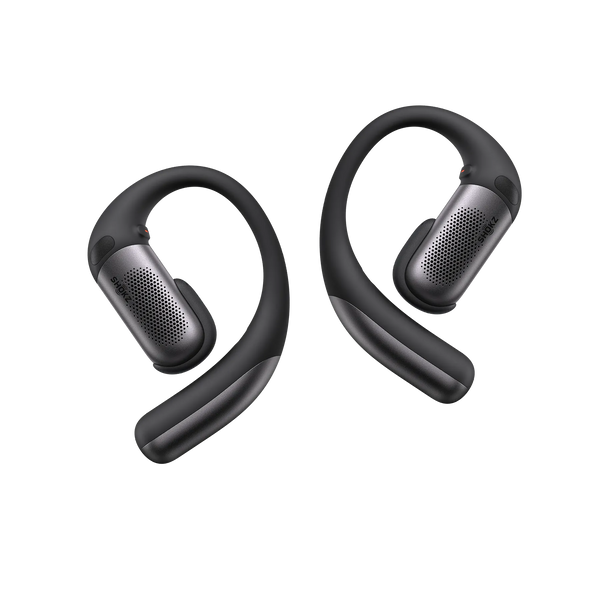
That means both open-ear and bone conduction models can work well for calls. If you're looking for an open-ear option, OpenFit Pro supports HFP for voice calls and A2DP for audio playback. It also features Bluetooth 6.1 and multipoint pairing, making it easy to switch between your laptop and phone throughout the workday.
The decisive factor is the Bluetooth profile match. Not the form factor.
How to Install and Configure a Wireless Adapter for Laptop Bluetooth
Buying the right adapter is only half the job.
If Windows keeps using the old Bluetooth chip — or if your call app keeps choosing the wrong audio device — call quality can still fall apart. The setup needs to be as deliberate as the purchase.
Step by step: install the adapter without triggering conflicts
-
Open Device Manager.
You should see your current Bluetooth hardware listed under Bluetooth. -
Disable the built-in Bluetooth device.
The icon should change, showing the old radio is no longer active. -
Insert the new adapter.
Windows should detect it, either with a connection sound or a new device entry. -
Install the adapter driver if prompted.
You should see the installation complete cleanly, without a warning icon.
The goal is simple: one active Bluetooth path, not two competing ones.
Step by step: set the headset as the default communications device
-
Open Sound settings in Windows.
You should see separate sections for output and input. -
Select the Bluetooth headset for output.
It should appear as the active playback device. -
Select the Bluetooth headset microphone for input.
The input meter should respond when you speak. -
Set the headset as the Default Communication Device in the classic Sound Control Panel.
You should see the green phone icon marking it for calls.
This is the point where many setups go wrong. The adapter may be installed perfectly, but Windows may still prefer another device until you tell it otherwise.
How to force Zoom or Teams to use the right Bluetooth device
-
Open audio settings inside Zoom or Teams.
You should see separate menus for speaker and microphone. -
Choose your Bluetooth headset as the speaker device.
Play the test sound and confirm you hear it in the headset. -
Choose your Bluetooth headset as the microphone device.
Speak and confirm the mic level responds.
App-level settings can override Windows defaults. So even when Windows looks correct, the meeting app may still be listening somewhere else.
If your headset supports call-ready profiles like HFP, selecting it directly inside the app usually removes most of the confusion.
Platform certification is another way to reduce setup uncertainty. Shokz OpenMeet 2 is certified for Zoom and Cisco Webex, providing added confidence when using those meeting platforms.
How to confirm the new adapter — not the old chip — is handling the call
Open Device Manager while a call is active and check whether the built-in Bluetooth radio is still enabled.
If you see two active radios, Windows may still be dividing the workload between them.
You can also open Bluetooth & devices in Windows and confirm the headset’s connection status. If the new adapter is doing its job, the headset should stay connected through that single active Bluetooth path rather than bouncing unpredictably between radios.
Range, Interference, and What Can Still Hurt Call Quality
Even a properly installed wireless adapter for laptop Bluetooth can struggle in the wrong environment.
Range claims are usually best-case figures. Real desks are less forgiving. Walls, metal furniture, USB devices, crowded Wi‑Fi, and constant movement can all chip away at call quality after installation.
How far a Bluetooth 5.x adapter really reaches in a workspace
Bluetooth range claims are typically measured under ideal conditions. In a real workspace, walls, furniture, and other wireless devices can all reduce signal strength.
For the most reliable call quality, it's generally best to stay in the same room as your laptop. If you regularly move between rooms during calls, expect a shorter effective range than the advertised maximum.
How USB 3.0 and 2.4 GHz Wi‑Fi can interfere with Bluetooth
A tiny adapter can be fully connected and still sound choppy.
Why? Because nearby radio noise can crowd the signal.
USB 3.0 ports and 2.4 GHz Wi‑Fi are common culprits. If the adapter sits right next to other busy USB devices, interference can degrade call quality even when everything appears correctly installed.
If that happens, try moving the adapter slightly away from the laptop body with a short extension. Sometimes a little distance makes a noticeable difference.
What to check if call quality is still poor
Start with the basics.
First, confirm that the correct speaker and microphone are selected in both Windows and your call app. Many “bad adapter” problems are actually default-device problems.
Then check whether the headset connected using the correct call profile.
That kind of behavior often points to device switching or profile confusion. If you recently paired another Bluetooth device, remove it temporarily and reconnect the headset so Windows can negotiate the call connection again.
Finally, make sure you’re not expecting music-mode behavior during a call. If the headset is connected over HFP/HSP, the sound path is different from music playback by design.
The Best Way to Choose a Wireless Adapter for Laptop Bluetooth
Choosing a wireless adapter for laptop Bluetooth comes down to a few essentials.
Check compatibility first.
Confirm HFP/HSP support.
Prefer Bluetooth 5.0 or newer.
And once it arrives, make sure Windows is actually using it.
Because for calls, Bluetooth isn’t just about connecting. It’s about being heard clearly, consistently, and without friction.
That’s the difference between an adapter that merely works — and one that works when it counts.